

YouTrip Login Guide: How to Sign In and Fix Common Issues (2026)
To log in to YouTrip, open the app, enter your registered mobile number or email, then verify with an SMS or WhatsApp OTP before entering your passcode. Most sign-in failures come from an outdated app, an active VPN, or an unrecognised phone number. This guide walks through the login steps and exact fixes for the most common YouTrip login problems in 2026.
Not financial advice. This guide is for educational reference only. Data verified as at 14 July 2026 against YouTrip’s official Support Centre.
- Log in with your registered mobile number or email, then verify via SMS OTP or WhatsApp OTP, then enter your app passcode.
- Most login errors are fixed by updating the app, turning off your VPN, or switching to WhatsApp or email verification.
- Still locked out? Tap More > Help > Let Us Help You in the app — see our troubleshooting table below for faster fixes.
Table of Contents
- How YouTrip Login Works
- What You Need Before You Log In
- Step-by-Step: Logging In with SMS OTP
- Alternative: Logging In with WhatsApp OTP
- Common YouTrip Login Problems (and How to Fix Them)
- Forgotten Passcode or Locked Out? Here’s What to Do
- YouTrip Login vs Wise and Revolut
- Keeping Your YouTrip Account Secure
- Frequently Asked Questions
How YouTrip Login Works
YouTrip doesn’t use a traditional username and password. Instead, you log in with your registered mobile number or email address. The app then sends a one-time password (OTP) — a 6-digit code — to verify it’s really you.
After the OTP, you’ll enter your app passcode. This is the 6-digit PIN you created when you first set up your YouTrip account. Some phones also support Face ID or fingerprint as a shortcut, once you’ve enabled it in the app.
This two-step check keeps your wallet secure. However, it also means a few small things — like an outdated app or an active VPN — can block you from logging in. We cover exactly how to fix each one below.
YouTrip is regulated by the Monetary Authority of Singapore (MAS) as a Major Payment Institution, so its login security follows strict guidelines set by the regulator.
What You Need Before You Log In
Before you open the app, make sure you have the following ready. Missing any one of these is the most common reason logins fail.
| Requirement | Details |
|---|---|
| Registered mobile number or email | Must match exactly what’s saved on your YouTrip account |
| Latest YouTrip app | Download from the Apple App Store or Google Play Store |
| Stable internet connection | Wi-Fi or mobile data — turn off any VPN |
| App passcode | The 6-digit PIN you created at sign-up |
| Biometric ID (optional) | Face ID or fingerprint, if you’ve enabled it |
Source: YouTrip Support Centre, July 2026
If your mobile number has changed since you signed up, don’t worry. We cover exactly what to do in the troubleshooting section below.
Step-by-Step: Logging In with SMS OTP
Here’s the standard way to log back in to YouTrip after signing out.
Step 1: Open the App and Tap “Get Started”
Launch the YouTrip app on your phone. On the welcome screen, tap Get Started to begin the login process.
Step 2: Enter Your Registered Mobile Number
Type in the mobile number linked to your YouTrip account. This must be the exact number you used when you signed up.
Step 3: Enter the 6-Digit SMS OTP
YouTrip sends a 6-digit one-time password to your phone by SMS. Enter it in the app within the time limit shown on screen.
Step 4: Enter Your Passcode
Finally, enter your 6-digit app passcode. You’re now logged in and can view your wallet balance and transactions.
Alternative: Logging In with WhatsApp OTP
If you don’t have access to SMS on your registered number, YouTrip lets you verify through WhatsApp instead. Here’s how.
Step 1: Tap “Verify with WhatsApp Instead”
On the OTP screen, look for the option to switch to WhatsApp verification and tap it.
Step 2: Open WhatsApp for Your Code
YouTrip’s official WhatsApp account sends you a 6-digit code. Look for the blue tick verification badge — this confirms it’s genuinely from YouTrip.
Step 3: Enter the WhatsApp OTP
Type the 6-digit code into the app.
Step 4: Enter Your Passcode
Complete the login by entering your app passcode, just like the SMS method.
Important: Only accept OTP codes from YouTrip’s verified WhatsApp account with the blue tick icon. Never share your OTP with anyone, even someone claiming to be YouTrip support.
For the full walkthrough with screenshots, YouTrip’s own Support Centre login guide keeps every step up to date.
Common YouTrip Login Problems (and How to Fix Them)
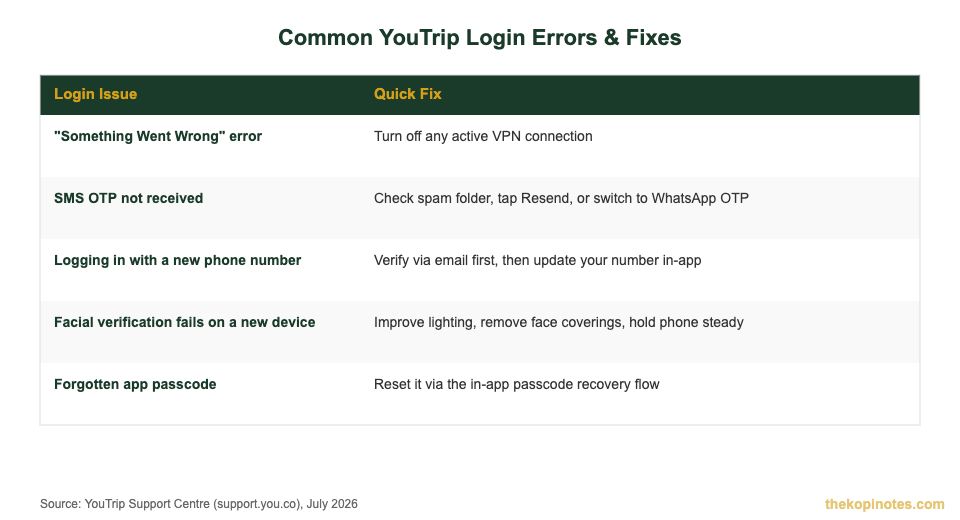
Most login issues come down to a handful of causes. Here’s a quick-reference table, based on YouTrip’s official troubleshooting guidance.
| Login Issue | How to Fix It |
|---|---|
| “Something Went Wrong” error | Turn off any active VPN connection — YouTrip blocks logins over VPN |
| SMS OTP not received | Check your SMS spam folder, tap Resend Code, or switch to WhatsApp OTP |
| Logging in with a new phone number | Verify using your old number or email first, then update your number afterward |
| Biometric login incomplete | Finish the Face ID or fingerprint enrolment prompt before your next login attempt |
| Facial verification fails on a new device | Improve lighting, remove face coverings, hold your phone steady, and update the app |
| Forgotten app passcode | Reset it through the in-app passcode recovery flow |
| No access to old number or email | Tap More > Help > Let Us Help You in the app for manual account recovery |
Source: YouTrip Support Centre, July 2026
The most common culprit is a VPN. YouTrip’s security system blocks logins whenever a VPN connection is active on your phone. Turn it off completely — not just paused — before trying again.
If you’re on a new phone number, don’t panic. Enter your old registered number and choose email verification instead. Once you’re in, update your mobile number from the account settings menu.
For more detail, YouTrip’s troubleshooting FAQ covers device-specific fixes for facial verification and biometric errors.
Source: YouTrip Support Centre, July 2026
Forgotten Passcode or Locked Out? Here’s What to Do
A forgotten passcode is one of the most common reasons Singaporeans get locked out of YouTrip. Here’s exactly how to recover access.
Open the app and tap Forgot Passcode on the login screen. You’ll need to verify your identity again — usually through SMS or WhatsApp OTP — before setting a new 6-digit passcode.
If you’re locked out because your account looks suspended, that’s a separate issue from a login problem. YouTrip may temporarily suspend accounts for security reviews, not just failed logins.
Once you regain access, it’s worth reviewing your account details. If you’re curious about ongoing costs, YouTrip’s fee structure breaks down every charge for 2026.
Haven’t applied for a YouTrip card yet and just exploring? Here’s how to apply for a YouTrip card in Singapore, including SingPass verification and card delivery times.
YouTrip Login vs Wise and Revolut
If you’re weighing YouTrip against other travel cards, sign-in convenience is worth comparing too. Here’s how the three most popular apps in Singapore handle login.
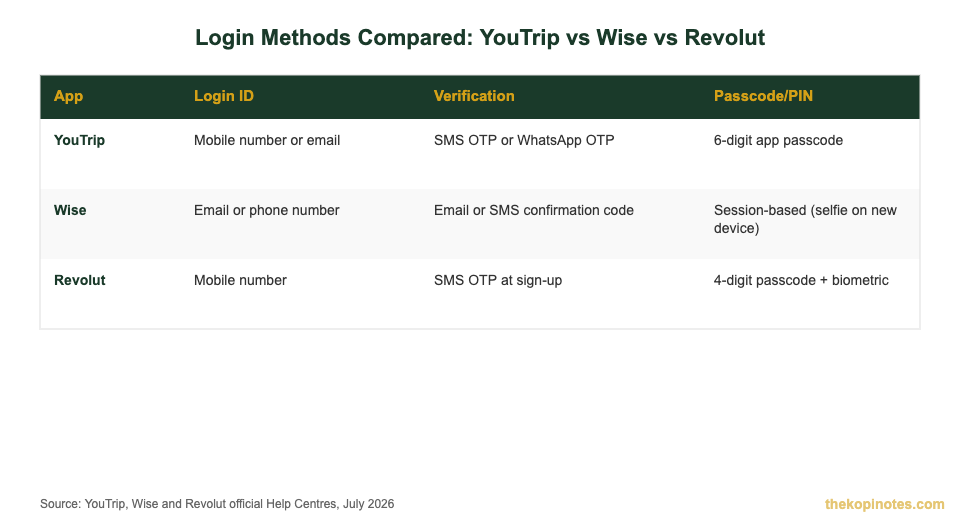
| App | Login ID | Verification | Passcode/PIN |
|---|---|---|---|
| YouTrip | Mobile number or email | SMS OTP or WhatsApp OTP | 6-digit app passcode |
| Wise | Email or phone number | Email or SMS confirmation code | Session-based; selfie option on new devices |
| Revolut | Mobile number | SMS OTP at sign-up | 4-digit passcode plus biometric |
Sources: YouTrip Support Centre, Wise Help Centre, Revolut Help Centre — July 2026.
YouTrip and Revolut both lean on your phone number as the primary login ID, backed by an OTP and a short passcode. Wise leans more on email, with an optional selfie check for new devices.
None of the three use a traditional password. That’s typical for mobile-first fintech apps. A shorter code paired with device-level checks is usually faster, and just as secure.
Still deciding which travel card fits you best? Our Wise vs YouTrip comparison and Revolut vs YouTrip comparison break down fees, FX rates and features side by side.
Keeping Your YouTrip Account Secure
Never share your OTP or passcode with anyone. Not with a friend, and not with someone calling and claiming to be “YouTrip support”. YouTrip staff will never ask for your OTP over the phone.
Turn on biometric login if your phone supports it. Face ID or fingerprint is faster than typing a passcode, and it adds another layer of protection if your phone is ever lost.
Only trust YouTrip’s verified WhatsApp account — the one with the blue tick badge — for OTP codes. Scam accounts sometimes impersonate official channels.
Keep your app updated. Older app versions are more likely to trigger login errors and miss the latest security patches.
Avoid logging in over public Wi-Fi where possible. If you must, make sure any VPN is switched off first, since YouTrip blocks VPN connections entirely.
Log out of the app on any old or unused phone. This closes off one more way an outdated device could be used to access your wallet.
Thinking about which multi-currency card fits your travel habits best? Our best zero FX fee multi-currency cards guide compares YouTrip against other Singapore options beyond just login and security.
Frequently Asked Questions
How do I log in to YouTrip if I lost my phone?
Get a new SIM card with your old registered number reactivated, then log in via SMS OTP as usual. If you can’t recover your number, use WhatsApp or email verification instead, then update your details through More > Help > Let Us Help You once you’re back in.
Why does YouTrip say 'Something Went Wrong' when I try to log in?
This almost always means a VPN is active on your device. YouTrip blocks app access completely while a VPN connection is on. Turn it off, restart the app, and try logging in again.
Can I log in to YouTrip without a passcode?
No. YouTrip always requires your 6-digit passcode after OTP verification, though you can enable Face ID or fingerprint as a faster shortcut once you’ve set it up.
What do I do if I don't receive my YouTrip OTP?
Check your phone’s SMS spam or blocked messages folder first. If it still doesn’t arrive, tap Resend Code or switch to WhatsApp OTP verification from the login screen.
Is it safe to log in to YouTrip on public Wi-Fi?
YouTrip’s login is encrypted, but public Wi-Fi still carries general security risks. Avoid using an active VPN, since YouTrip blocks these, and never log in on a shared or public computer.
Can I use YouTrip on two devices at once?
You can log in to YouTrip on a new device, but doing so typically requires fresh OTP verification. Your account isn’t restricted to one device, but each new phone needs to go through the login and verification steps again.
Disclaimer: This article is for informational purposes only and does not constitute financial advice. Login steps and troubleshooting guidance are based on YouTrip’s official Support Centre as at 14 July 2026. Always verify current steps directly in the YouTrip app, as interfaces may change. TKN may earn referral fees when you use links on this page.
This article was researched with the help of AI. While we strive to keep all information accurate and up to date, there may be errors. If you notice any discrepancies, please contact us.